It is vital to complete checks before submitting your VAT return to ensure it is accurate and you are claiming the correct amount of VAT.
We would recommend the following:
VAT reconciliation check
The balance due on the VAT return should agree with the balance of the VAT liability account on the balance sheet at the same date. Any difference should be investigated.
Effective output VAT rate calculation
Calculating the effective output VAT rate can provide reassurance that the VAT due box is accurate. The effective output VAT rate is calculated by taking the VAT due on sales (box 1) divided by total sales value (box 6). How does this compare with previous VAT periods? For businesses with wholly standard rated sales, this would be expected to be 20% exactly and any variance should be investigated in detail. For a business with a mix of zero rated and standard rated sales the effective output rate will fluctuate but may be expected to stay within a consistent range each quarter.
Review the Transactions by VAT Box
All the transactions making up the VAT return should be reviewed to ensure the VAT return is accurate. To do this, export the VAT return to excel. The second tab of this export will show every transaction on the VAT return by VAT box, separated by VAT rate. A simple percentage formula can then be added to give the percentage VAT on a line by line basis. This can then be reviewed and any anomalies identified to be corrected.
For sales, where the effective output rate is not a straightforward 20%, review the list to check that sales are correctly categorised between 20% VAT and zero rated income, and that EU sales are recorded as zero rated income.
For purchases, the transactions by VAT box report can be sorted by account for ease of review, as it may be that all the transactions in the same account would be expected to have the same VAT rate (eg. client entertaining 0%). Review to check the correct VAT rate has been applied. Some specific examples to check are:
- VAT is only reclaimed where a VAT invoice has been received. The account code in Xero may have a default VAT code of 20% but if you are using a non VAT registered supplier, no VAT can be claimed. If you identify any incorrect VAT claims, make the amendment to the transaction and amend the default VAT code for the supplier in Xero to make the next VAT return review easier and quicker. Key accounts to check include repairs and maintenance, hotels, and subsistence.
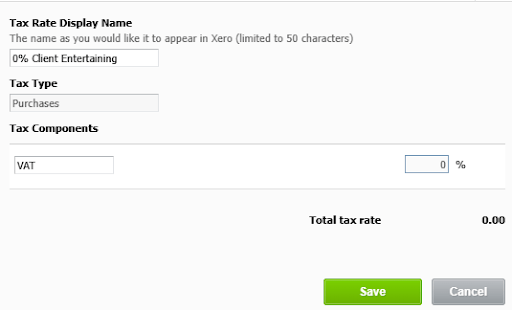
- No VAT has been claimed on client entertaining. It is possible to set up a bespoke 0% VAT account for client entertaining in Xero via the advanced accounting menu:
- VAT has not been claimed on the purchase of a car.
- VAT has not been claimed on deposits.
- The 50% VAT restriction has been applied to car lease costs. Adding a percentage formula to the transactions by VAT return box makes it easy to identify that the motor leasing costs have 10% VAT applied. Please note this restriction also applies to any RFL rental costs on car leases, but not service charge or maintenance costs.
- VAT has been claimed correctly on business mileage
- Insurance, postage stamps and interest are recorded as exempt from VAT.
- No transactions which fall outside of the scope of VAT are included in the VAT return. These include wages, dividends, MOT tests, business rates, and taxes.
- Look out for duplicated or missing transactions. Any transactions that have ‘no VAT’ allocated to them will not appear on the VAT return. It is therefore important to review these transactions in xero to identify any potential transactions incorrectly allocated as ‘no VAT’. This can be done by running the ‘general ledger exceptions’ report and grouping the report by VAT rate name. This will then bring up any VAT transactions which differ from the expected default VAT rate, including no VAT transactions.
Read our full guide on accounting for value added tax (VAT) to learn more.
If you need help with this, or with other advice, then please get in touch with our accounting team.